
Zoom Audio Routing
Answer a few quick questions about your setup and get the exact steps to get your audio into a Zoom meeting, with no third-party tools required unless you actually want them.
Setup Options
Your device
What you're joining Zoom on.
How you're joining
Desktop app vs. browser changes what's possible.
What you want to share
Where the audio is actually coming from.
Microphone
Also use your mic, or audio only?
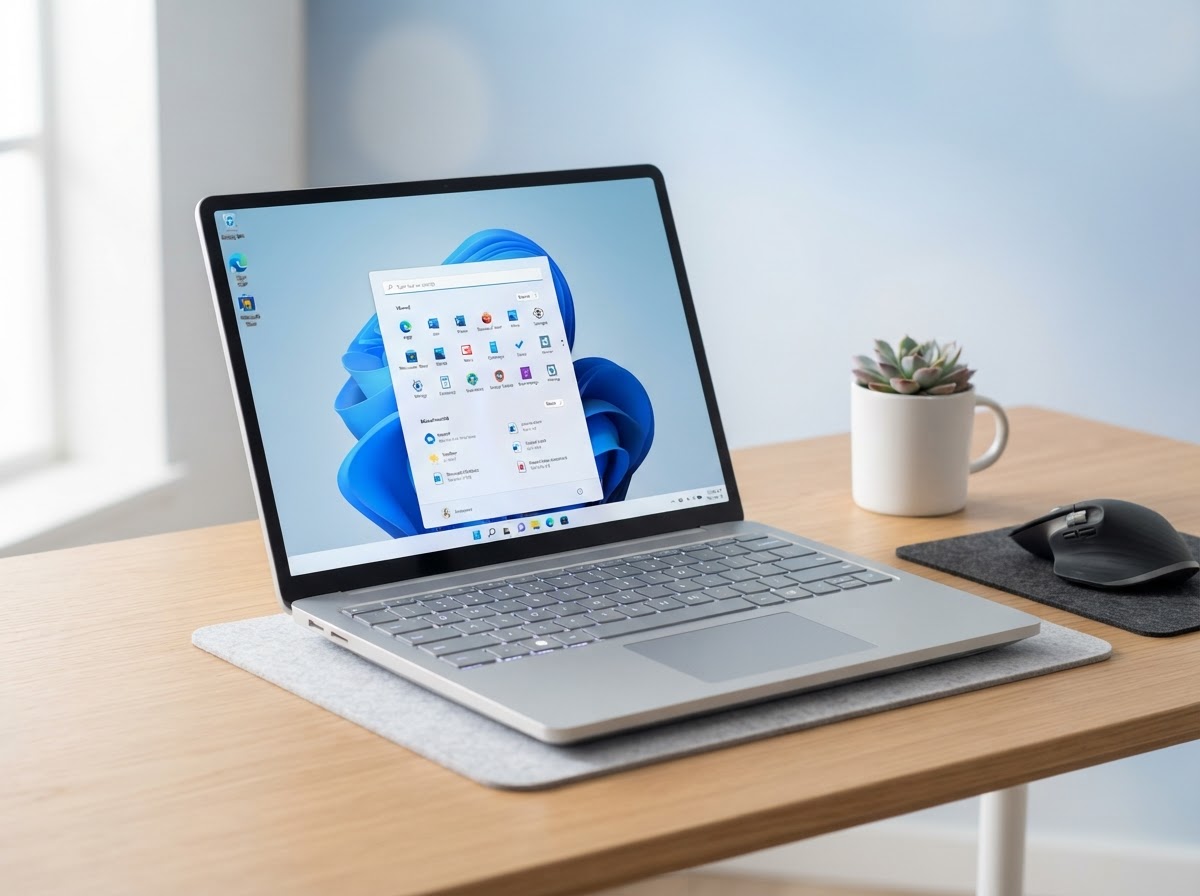
Direct Computer Audio Sharing (Windows Desktop App)
You can seamlessly stream crisp, stereo system audio directly through Zoom without needing extra cables or virtual audio software.
Prerequisites & Requirements
- Zoom Desktop Client v5.0 or higher
- Computer Speakers/Headphones properly configured in Windows Sound Settings
Step-by-Step Instructions
1. Join your Zoom Meeting
Open the Zoom Desktop App and join or start your meeting.
2. Click 'Share Screen' (Green Button)
In the meeting controls toolbar at the bottom, click the green Share Screen button or press Alt+S.
3. Check 'Share Sound' at the bottom-left
In the window selection popup, check the box labeled 'Share sound' in the bottom-left corner.
4. Select Advanced or Portion of Screen (Optional)
If you only want to share audio without video/screen, go to the 'Advanced' tab at the top and select 'Computer Audio'.
Pro Tip
To share JUST audio without cluttering the screen, select Share Screen -> Advanced -> Computer Audio!
Important Notes & Troubleshooting
- •Zoom will automatically duck system sounds if noise suppression is aggressive. Enable 'Original Sound for Musicians' in Zoom Audio Settings for uncompressed music.
- •Ensure Windows master volume is set to a comfortable level (50-80%).
- •Adjust the balance three ways: move the in-app volume slider (e.g. the Spotify or Apple Music volume bar) up or down, change the device's master volume (Windows/Mac system slider or your speaker/headphone hardware knob), or — for fine per-source control — route everything through a virtual mixer like Elgato Wave Link and trim each source on its own channel.